Microsoft Intune Endpoint Privilege Management has been around for a couple of years now and address the challenge of removing local administrative privileges for users without interrupting productivity.
In December 2025 Microsoft announced that they will add Microsoft Intune Endpoint Privilege Management to the Microsoft 365 E5 license during the summer in 2026! This is great news as this will enable Microsoft Intune Endpoint Privilege Management for many customers without purchasing additional licenses and increases the value of Microsoft 365 E5. https://techcommunity.microsoft.com/blog/microsoftintuneblog/microsoft-365-adds-advanced-microsoft-intune-solutions-at-scale/4474272
Local administrative permissions are still being used in many organizations, to get that old legacy app working, users that needs to test software, developers, installing / updating drivers and Software. There are many different reasons for it to be granted to users out there.
Let’s have a look at what Microsoft Intune Endpoint Privilege Management will bring us.
Why Local Administrator Rights is a Security Risk
Threat actors can exploit local administrator privileges in a variety of ways:
- Malware Persistence: Malware with admin rights can install services, modify registry run keys, and disable Windows Defender or other endpoint protection tools, making it extremely difficult to eradicate.
- Credential Theft: Tools that require admin-level access to extract credentials. Removing local admin rights makes these attacks significantly harder.
- Ransomware Deployment: Ransomware payloads typically need elevated rights to encrypt system files, shadow copy deletions, and disable backup agents. Standard user accounts limit this capability substantially.
- Supply Chain Attacks: Malicious software delivered via compromised update mechanisms can only cause systemic damage if the executing account has sufficient privileges.
- Clickfix Attacks: End users visit a website or opens an email with malicious payloads that initiates the attack which is much easier if the user is local administrator.
- Outdated software: End user with Local administrative privileges can install software that is in many cases not updated by them and that is a risk and a cost for IT to chase down.
- Bypass security settings in the operating System: as a local administrator a user can bypass or disable many of the security features which also means a bad actor can do it as well.
The Compliance challenge
Frameworks such as ISO 27001, NIST SP 800-53, CIS Controls, and the UK Cyber Essentials scheme all include requirements around least-privilege access. Organisations that cannot demonstrate controlled user privilege models may face audit findings, failed certifications, or regulatory penalties.
The challenge, then, is not whether to remove local admin rights, but how to do so without crippling user productivity or overwhelming the IT helpdesk with elevation requests.
This is where Microsoft Intune Endpoint Privilege Management can be of huge help.
With Microsoft Intune Endpoint Privilege Management we can elevate, Windows Installer apps, PowerShell scripts and installers/installed software addressing this challenge.
Microsoft Intune Endpoint Privilege Management
Microsoft Intune Endpoint Privilege Management is delivered as a feature within Microsoft Intune. This means:
- The additional agent is deployed and updated automatically just like the Intune Management Extension.
- Policy configuration uses the familiar Intune admin Portal interface
- Microsoft Intune Endpoint Privilege Management policies travel alongside other compliance and configuration policies deployed via Intune
- Microsoft Intune Endpoint Privilege Management reporting is accessible through the same Intune reporting infrastructure used for device health, app management, and compliance status
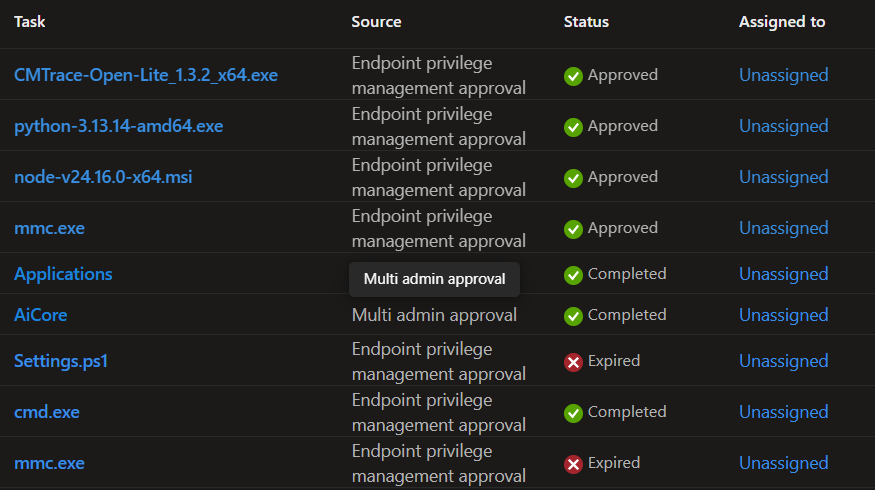
Elevation approvals are located together with other Admin tasks in the Microsoft Intune Portal.
Virtual admin account
By default, Microsoft Intune Endpoint Privilege Management uses a virtual administrative account and does not elevate the logged-on user. Which is shown in the picture below with the username and an extra “_$” in the end.
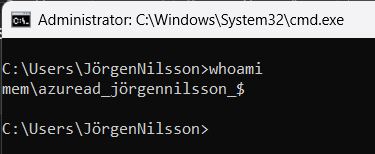
This is good from a security perspective but from a user perspective we need to train the end users to not install software in user context in these scenarios as many installers still prefer this method. For automatic elevation rules we can elevate the logged-on user which is useful in some scenarios where the user’s permission in external systems is needed.
Example, if allow your users to elevate to install an application like for example Phyton for Windows, we must educate them to install it for All users, otherwise it will not work as it is installed in the virtual user profile.
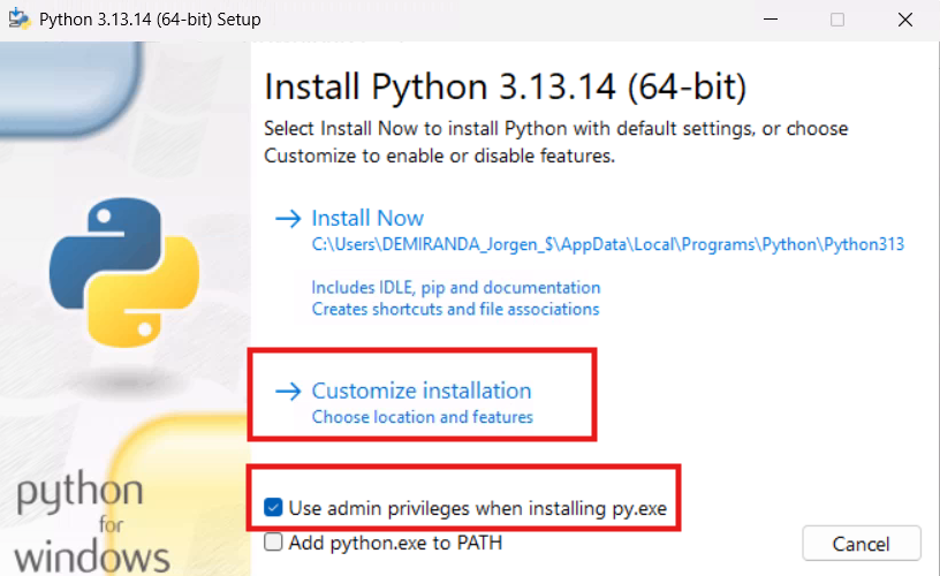
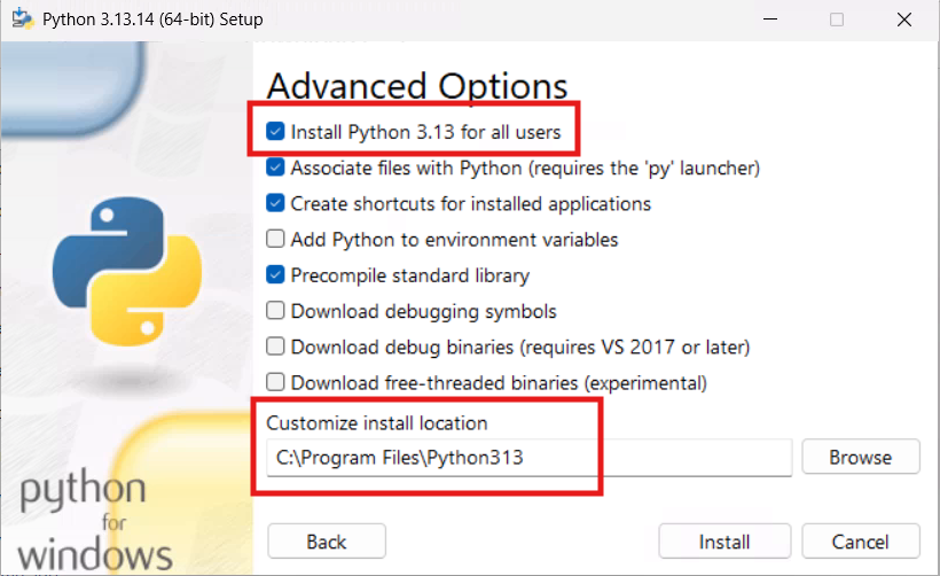
Installing the software for all users also makes it possible for us to update it using a 3rd party patching solution.
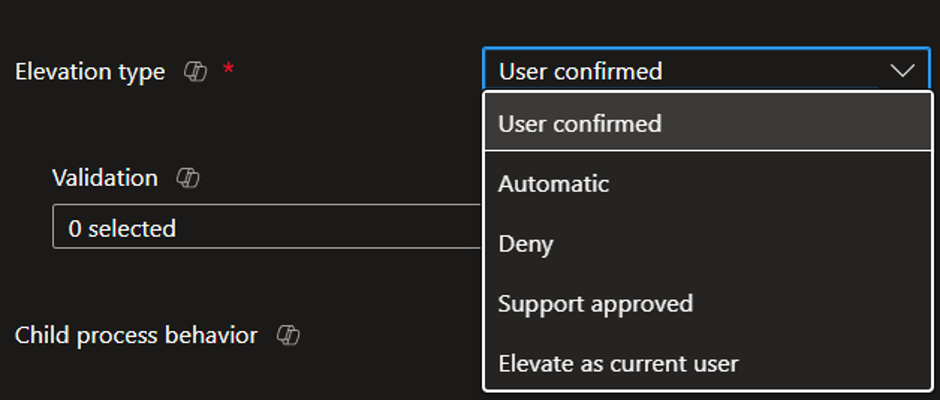
Elevation options
- Deny and Log: Block the elevation attempt and log the event. This is the most secure default and is recommended for high-security environments.
- Allow with User Confirmation: Permit the elevation but require the user to either write a business justification and/or provide their user credentials. Useful both for some user groups, developers for example and during a transition period when not all legitimate use cases have been captured in rules.
- Allow without Prompt: Silently permit unmatched elevations. This is the least restrictive option and is generally not recommended for production use.
- Allow with Approval request: An approval request is sent to Microsoft Intune Admins to approve the request.
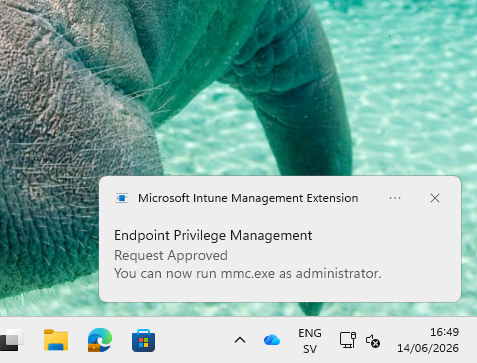
Both the request and the approval is fast after an update last year, it takes less than 10 seconds both for the approval request to reach the admin and the notification to the user that it is approved.
Note: that no information is sent to the user if the request to elevate was rejected. - Elevate as current user: With this option we can automatically elevate a process using the current user on the device useful for example when elevating a Line of Business App that uses the signed in user’s credentials to authenticate to a backend.
Reporting
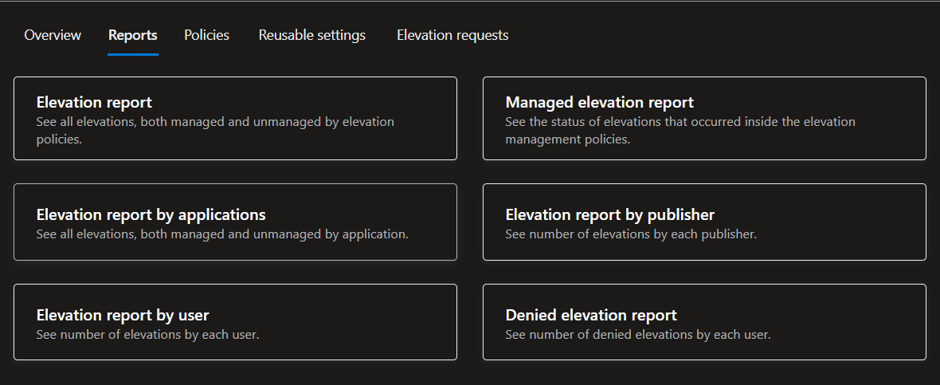
The first thing we do is to deploy the agent without any elevation rules to collect information about what processes and software are elevated by the users today.
We get reports both on Managed elevations using Microsoft Intune Endpoint Privilege Management and Unmanaged where the end user is still local administrator and elevates using those permissions.
End user experience
This is the trickiest part of switching to Microsoft Intune Endpoint Privilege Management compared to be a local administrator. The users are used to use “Run as Administrator” but that will not work, they will have to use the new option that are on the context menu as soon as the Microsoft Intune Endpoint Privilege Management agent is installed.
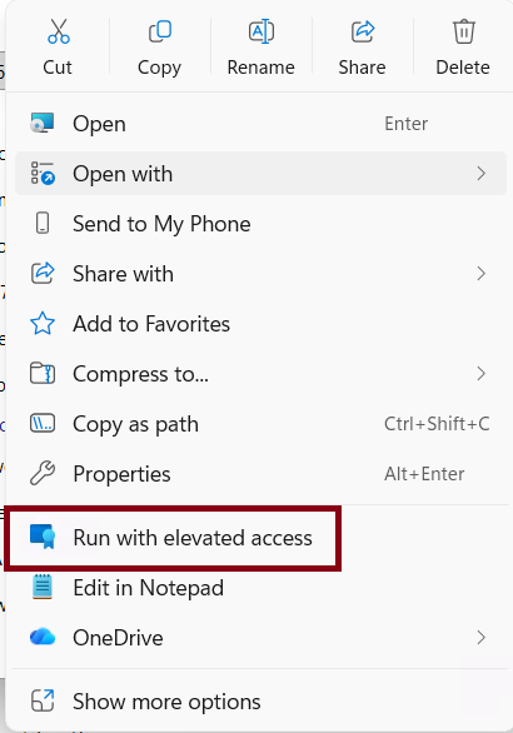
What happens for the end-user when selecting this is based on the policies we set.
This example will show the user experience when using approval mode.
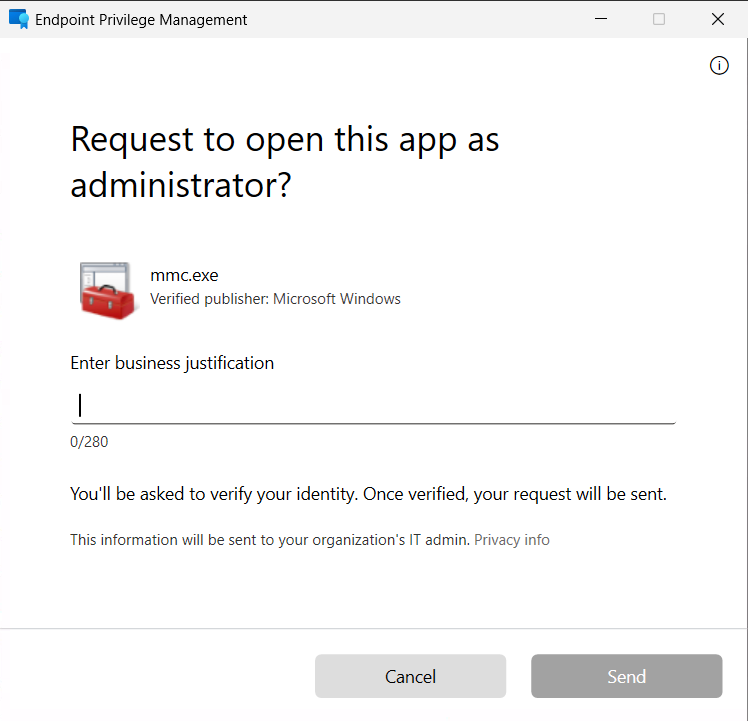
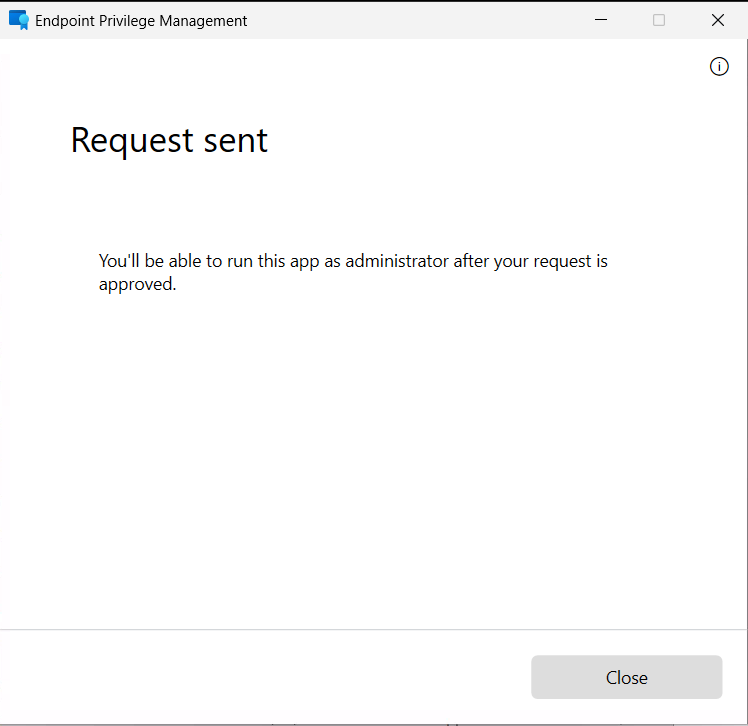
When the Intune administrator has approved the request the end user will get a notification that it is now approved.
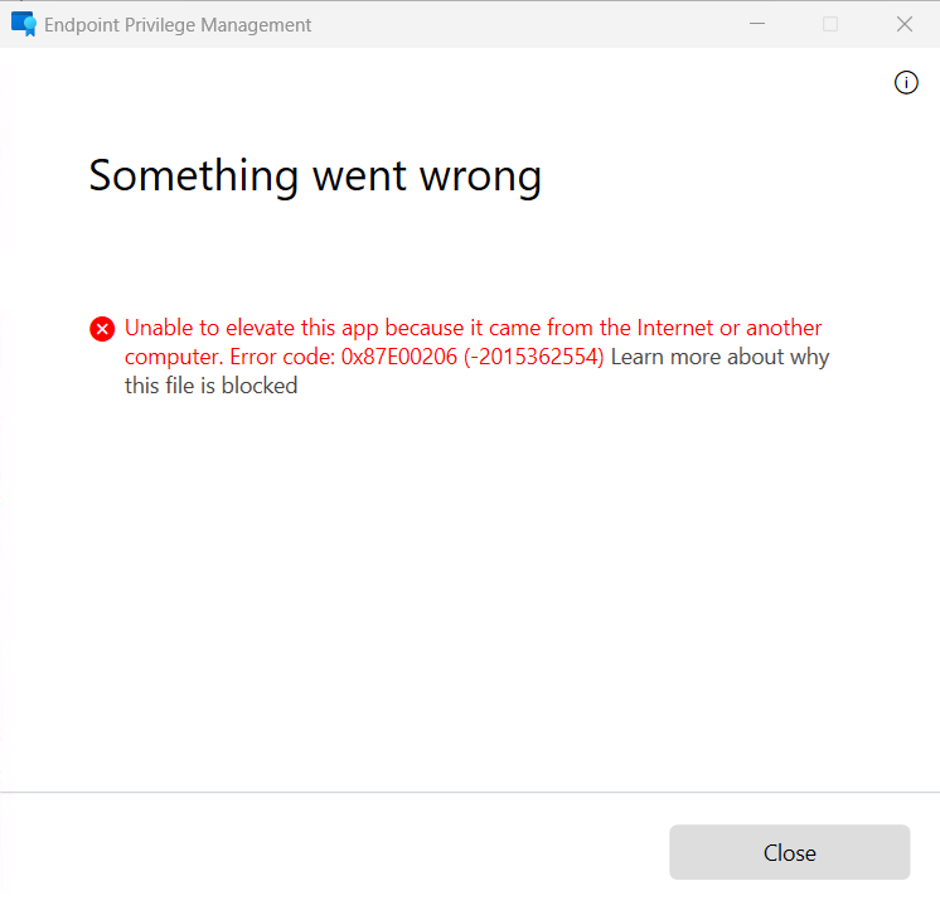
Note:
Files from the Internet will automatically be blocked if the flag is not removed. Which makes perfect sense to make it harder and make the user think once more before elevating the downloaded file.
Conclusion
For organisations already invested in Microsoft 365 E5 and Microsoft Intune, Microsoft Intune Endpoint Privilege Management is a natural and compelling evolution of their endpoint security strategy. It requires no additional infrastructure, leverages existing management tooling and identity systems, and delivers measurable security improvements from the moment local administrator rights are removed from the user population.
For a successful implementation please consider the following:
End-user training is needed and important for a successful deployment and also ServiceDesk training as they will answer all the questions from end-users.
Define success criteria before starting the project, it is different from all customers, some has that one application that still needs permission and maybe developers as well. Two total different scenarios and solutions.
For Customers using another Privilege Management solution today, it is time to test out Microsoft Intune Endpoint Privilege Management and see if it can be used instead. Then you will get the most out of your Microsoft 365 E5 license and can make savings in other places.
1 thought on “Microsoft Intune Endpoint Privilege Management – Overview”