I have written more than more blog post on how to customize the Start Menu on Windows 10 and 11 using scripts and/or policies. I had to write a post on the new option we have of doing it.
Now we have the possibility to use Intune to push out an initial Start Menu where the end-user can customize it however they want.
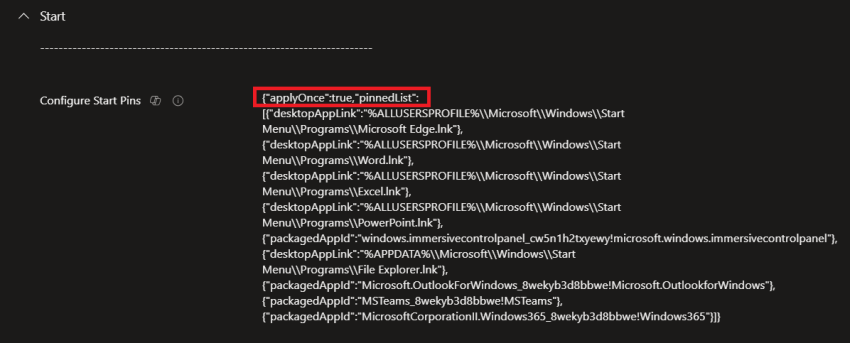
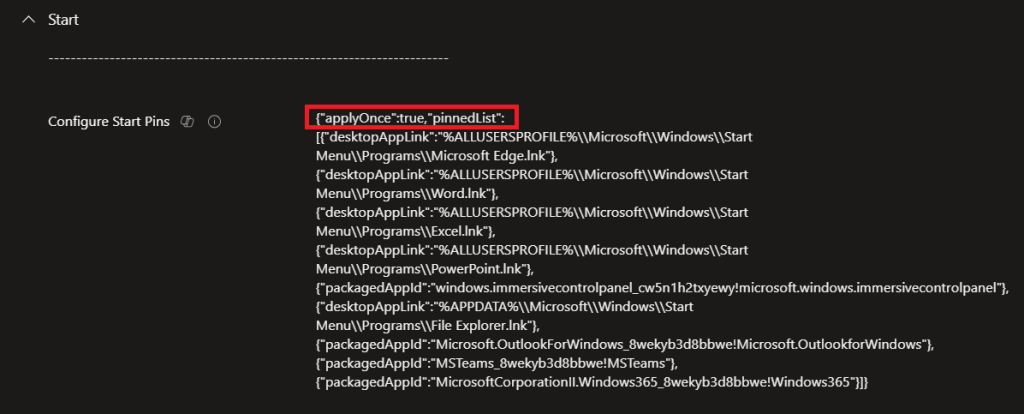
In Windows 11 the Start Menu is modified using the “Configure Start Pins” setting in the settings catalog, what makes it possible to deploy an initial Start Menu is the addition of the variable “ApplyOnlyOnce”:true in the .json file used to configure the Start Menu.
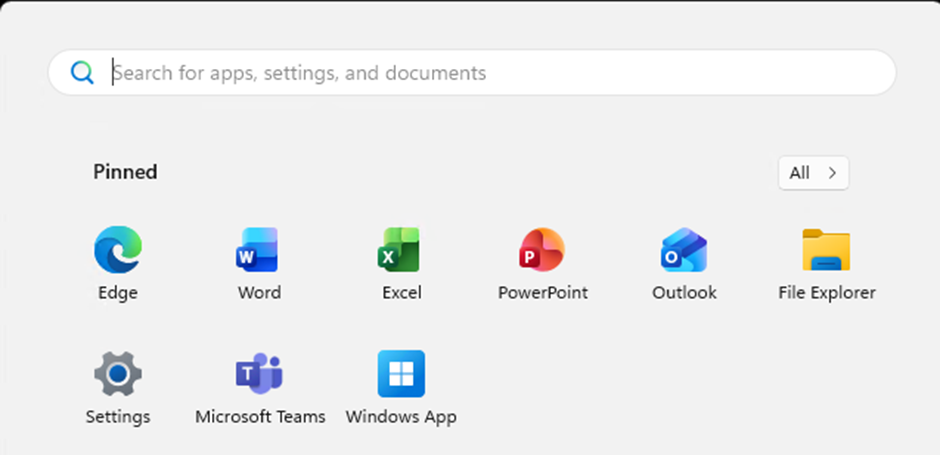
The end result looks like below, really nice and the end-user can reconfigure it however they want and it is not overwritten on a restart.
This works great, however there are some things to keep in mind.
- All other modifications we have done with scripts customizes the initial Start Menu layout which is applied when the user profile is created. This works in a different way, when deploying this setting it will do just what it says apply once, it will overwrite the Start Menu for everyone targeted by the policy and not only new profiles
- If we use Windows Backup for organizations the behaviour is the same, the restore of settings restore the Start Menu layout for it to be overwritten by the policy, not really what we want.
- Same as before all apps that we Pin must be installed when the policy is applied as it is only applied once.
With that in mind let’s have a look at how it is configured.
Configuration
Requirements: Windows 11, version 24H2 with KB5062660 – July 2025 or later.
Creating the .json file can be done either manually by modifying a sample file or by exporting a start menu from a Windows 11 device using the Export-startlayout PowerShell command.

Open the exported file and add the leading “ApplyOnlyOnce”:True in the file as shown above.
Note: when modifying that .json file make sure there are no extra characters, no line feeds if so it will not work.
Deploy
To deploy the new start menu:
- Create a new Configuration Policy
- Select Setting catalog

- Give the policy a name
- Search for “Configure Start Pins” select user or device depending on how you want to deploy it.
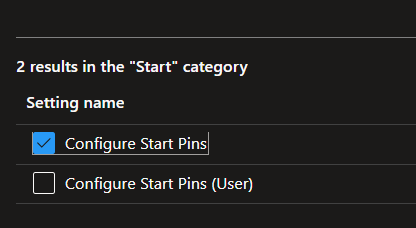
- Select the .json file and we are done, really easy.
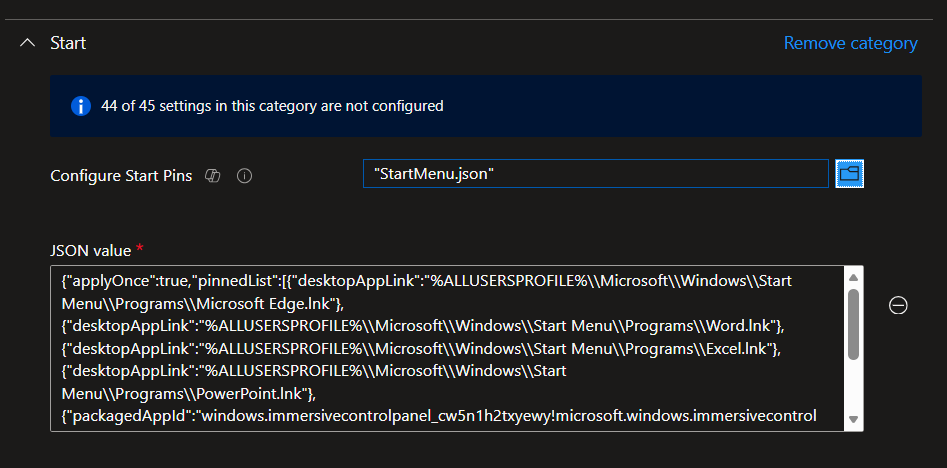
Try it out and see how it could work for you, and make sure there is no extra characters in the .json file
Me and my co-worker Nicklas Ahlberg recorded a little video on the topic as well. Check it out!